
On this page
How to Deploy a Laravel Application with Docker Compose: A Complete Guide
Docker has revolutionized how we deploy applications, and Laravel is no exception. In this guide, I'll show you how to containerize and deploy a Laravel application using Docker Compose, based on my own experience deploying production applications.
Why Use Docker for Laravel?
Before we dive in, let's understand why Docker is worth the effort:
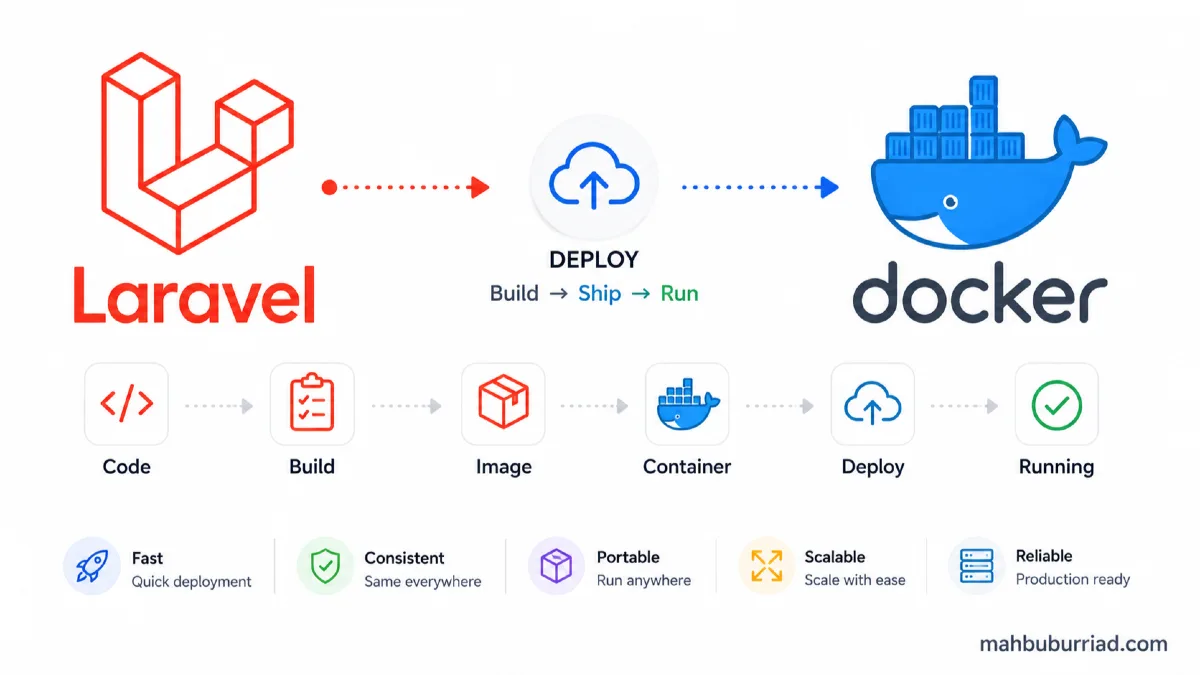
- Consistent environments across development, staging, and production
- Isolated dependencies that won't conflict with your system
- Reproducible builds that work the same everywhere
- Easy scaling with orchestration tools like Kubernetes
Prerequisites
- Docker and Docker Compose installed on your system
- Basic knowledge of Laravel and Docker concepts
- A Laravel application ready for deployment
Setting Up the Docker Environment
First, create a docker-compose.yml file in your project root:
version: '3.8'

services:
  app:
    build:
      context: .
      dockerfile: Dockerfile
    container_name: laravel_app
    restart: unless-stopped
    working_dir: /var/www/
    volumes:
      - .:/var/www
    environment:
      - APP_ENV=production
      - APP_DEBUG=false
    depends_on:
      - mysql
      - redis

  mysql:
    image: mysql:8.0
    container_name: mysql
    restart: unless-stopped
    environment:
      MYSQL_DATABASE: ${DB_DATABASE}
      MYSQL_ROOT_PASSWORD: ${DB_PASSWORD}
      MYSQL_PASSWORD: ${DB_PASSWORD}
    volumes:
      - mysql_data:/var/lib/mysql

  redis:
    image: redis:alpine
    container_name: redis
    restart: unless-stopped
    ports:
      - "6379:6379"

  nginx:
    image: nginx:alpine
    container_name: nginx
    restart: unless-stopped
    ports:
      - "80:80"
    volumes:
      - .:/var/www
      - ./nginx/default.conf:/etc/nginx/conf.d/default.conf
    depends_on:
      - app

volumes:
  mysql_data:
    driver: local
Creating the Dockerfile
Next, create a Dockerfile in your project root:
FROM php:8.1-fpm-alpine

# Install system dependencies
RUN apk add --no-cache \
    libzip-dev \
    zip \
    unzip \
    libpng-dev \
    oniguruma-dev \
    libxml2-dev \
    supervisor \
    nginx

# Install PHP extensions
RUN docker-php-ext-install \
    pdo_mysql \
    mbstring \
    exif \
    pcntl \
    bcmath \
    gd \
    zip \
    opcache

# Install Composer
RUN curl -sS https://getcomposer.org/installer | php -- --install-dir=/usr/local/bin --filename=composer

# Configure nginx
COPY nginx/default.conf /etc/nginx/conf.d/default.conf
COPY nginx/nginx.conf /etc/nginx/nginx.conf

# Configure PHP-FPM
COPY php/php.ini /usr/local/etc/php/conf.d/php.ini
COPY php/php-fpm.conf /usr/local/etc/php-fpm.d/www.conf

# Copy application code
COPY . /var/www
WORKDIR /var/www

# Install dependencies
RUN composer install --no-dev --optimize-autoloader --no-interaction

# Set permissions
RUN chown -R www-data:www-data /var/www/storage /var/www/bootstrap/cache

# Expose port 9000 for PHP-FPM
EXPOSE 9000

# Start services
COPY start-container /usr/local/bin/start-container
RUN chmod +x /usr/local/bin/start-container

ENTRYPOINT ["start-container"]
Nginx Configuration
Create an nginx/default.conf file:
server {
    listen 80;
    server_name example.com;
    root /var/www/public;

    add_header X-Frame-Options "SAMEORIGIN";
    add_header X-Content-Type-Options "nosniff";

    index index.php;

    charset utf-8;

    location / {
        try_files $uri $uri/ /index.php?$query_string;
    }

    location = /favicon.ico { access_log off; log_not_found off; }
    location = /robots.txt  { access_log off; log_not_found off; }

    error_page 404 /index.php;

    location ~ \.php$ {
        fastcgi_pass app:9000;
        fastcgi_param SCRIPT_FILENAME $realpath_root$fastcgi_script_name;
        include fastcgi_params;
    }

    location ~ /\.(?!well-known).* {
        deny all;
    }
}
Environment Configuration
Create a .env file if you haven't already:
APP_NAME=Laravel
APP_ENV=production
APP_KEY=base64:your_app_key_here
APP_DEBUG=false
APP_URL=http://example.com

DB_CONNECTION=mysql
DB_HOST=mysql
DB_PORT=3306
DB_DATABASE=laravel
DB_USERNAME=root
DB_PASSWORD=secret

CACHE_DRIVER=redis
SESSION_DRIVER=redis
QUEUE_CONNECTION=redis

REDIS_HOST=redis
REDIS_PASSWORD=null
REDIS_PORT=6379
Startup Script
Create a start-container file:
#!/bin/sh

# Start the nginx web server
nginx

# Start PHP-FPM
php-fpm

# Keep the container running
tail -f /dev/null
Make it executable:
chmod +x start-container
Deploying Your Application
- Build the Docker images:
docker-compose build
- Start the containers:
docker-compose up -d
- Run database migrations:
docker-compose exec app php artisan migrate --force
- Optimize the application:
docker-compose exec app php artisan config:cache
Production Considerations
Security
- Use SSL/TLS encryption
- Set proper file permissions
- Regularly update dependencies
- Use strong passwords and secrets
Performance
- Enable OPcache
- Configure Redis for caching
- Use a CDN for static assets
- Implement proper logging
Common Issues and Solutions
| Issue | Solution |
|---|---|
| Permission denied errors | Run chmod -R 755 storage bootstrap/cache |
| Database connection refused | Check if MySQL container is running and credentials are correct |
| Nginx 502 Bad Gateway | Verify PHP-FPM is running and listening on port 9000 |
| Composer dependencies not installed | Run docker-compose exec app composer install |
FAQ
1. Can I use this setup for production?
Yes, but make sure to implement proper security measures like SSL, strong passwords, and monitoring.
2. How do I scale this setup?
You can use Docker Swarm or Kubernetes for orchestration, and scale individual services as needed.
3. What about file storage?
For production, use cloud storage like S3 instead of local storage for better scalability and reliability.
4. How to handle environment variables?
Use Docker secrets or a .env file that's not committed to version control.
5. How to update the application?
Build a new Docker image and deploy it using rolling updates to minimize downtime.
Conclusion
Deploying Laravel with Docker Compose provides a robust and scalable solution for modern web applications. This setup gives you a solid foundation that you can build upon based on your specific needs. For more Laravel and DevOps content, visit mahbuburriad.com.
Remember to always test your deployment in a staging environment before going to production, and keep your dependencies up to date for security and performance improvements.